
Getting paid
Read Quay's AR aging dashboard
Open the Dashboard, the page Quay opens on, to see what you can expect to be paid this week, what your B2B companies owe and how late it is, who owes the most, and what needs your decision.
Quay is a Shopify app that enforces per-company credit limits and late-payment rules at B2B checkout for wholesale merchants.
Works on: any Shopify plan with B2B · About 2 minutes · Matches Quay as of November 2026
-
Open Quay. It opens on the Dashboard.
-
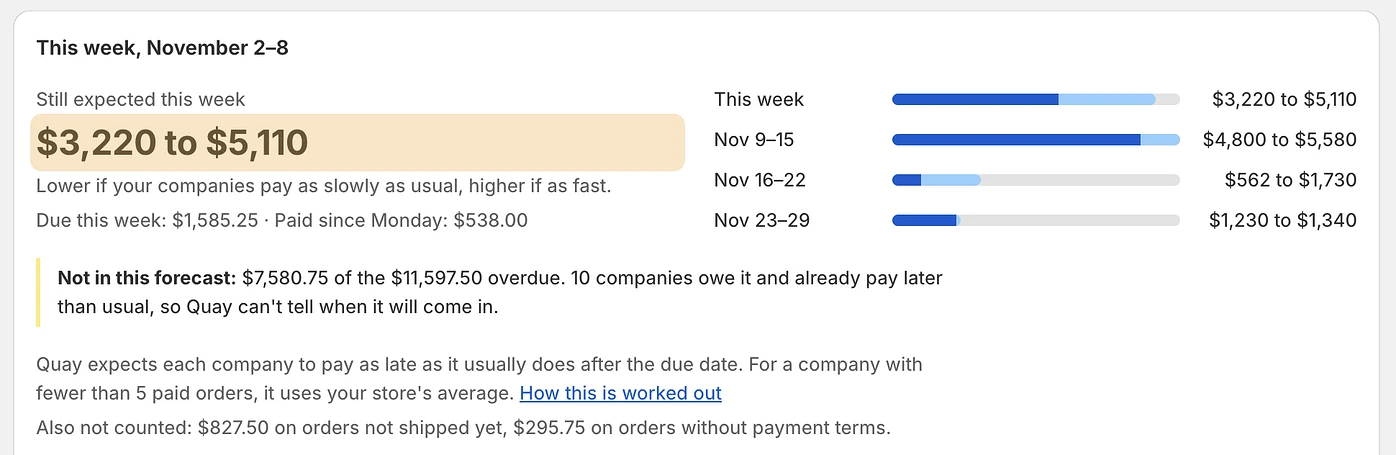
The first card is This week, titled with the dates of your store’s Monday to Sunday, for example “This week, November 2–8”. It opens with Still expected this week and a range, for example “$15,800 to $25,600”: what Quay expects to arrive, judged by how late each company usually pays. Under it, one line says what the two ends are: “Lower if your companies pay as slowly as usual, higher if as fast.” The next gives what falls due this week by payment terms and what has been paid since Monday, for example “Due this week: $12,400.00 · Paid since Monday: $3,100.00”. A table gives a range for this week and for each of the next three. Under the table, a note says how much of the overdue money is left out because the companies that owe it already pay later than usual, and a Not counted line names any other money left out, such as orders not shipped yet or orders without payment terms. How the forecast is worked out explains every part, and what the card says before your order history is read.
-
Below the forecast, Needs your decision lists what is waiting for you. Each row is one sentence that starts in bold, with a word such as Review that says where it goes. Click anywhere on the row to open the companies or order behind it. The rows are:
- Companies over their credit limit, for example “3 companies are over their credit limit. $4,200.00 over in all.” Review opens those companies.
- Orders that went through although their company was blocked, in the last 7 days. Each has a Got through label and reads like “Order #1452 for $2,400.00 went through although Ridgeway Rentals was blocked (34 days overdue).” The words in brackets give the reason: days overdue, “put on hold” or “over its credit limit”. Open order opens the order in Shopify. The three newest orders are listed, and a line counts the rest. How these are caught is on the Telegram alert page.
- Late companies with no policy: one row for all the companies whose unpaid orders are more overdue than usual and that have no policy and no hold. The badge shows how many, and the row reads like “94 of the 134 companies paying later than usual have no policy. They’re $580,246.65 overdue, and their new orders still go through.” Choose policies opens Suggestions with only those companies, and what you apply there can be undone for 30 days like any other group. A company with fewer than 5 paid orders is judged by your store’s usual timing.
- Suggestions, for example “Suggestions ready for 948 companies: 3 pay on time, 3 pay late, 7 pay very late, 935 with not enough history yet.” It counts every company with a suggestion, by how it pays. When some companies that already have a policy could take a higher limit, the row adds how many, for example “4 of them could take a higher limit.” Review opens Suggestions. While step 3 of the setup guide shows the suggestions, this row is not repeated here.
- Orders to check, for example “3 orders to check. Shopify marks them Paid or Refunded, but the payments don’t add up. They aren’t counted in what your companies owe until you check them.” Review opens the list; see the Orders to check list.
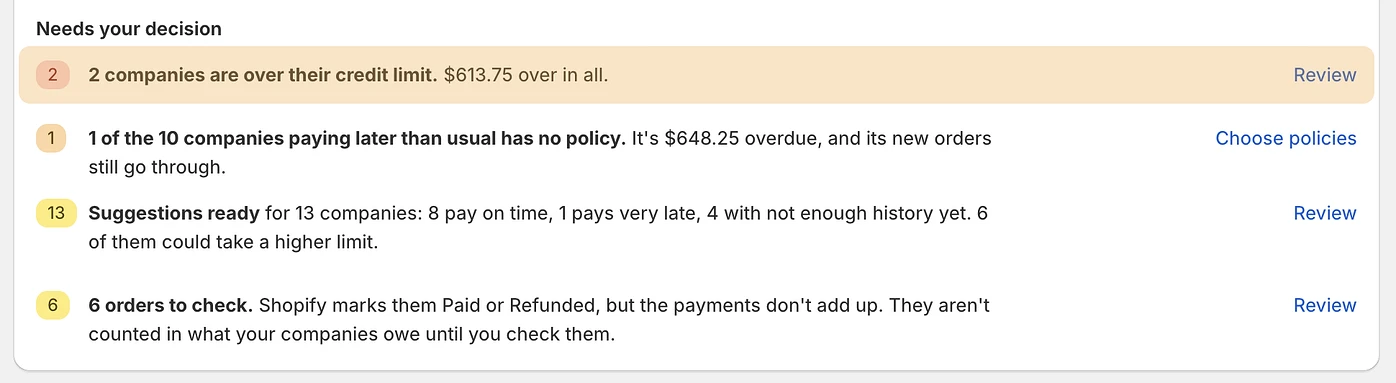
A row appears only when it has something to say. When no row does, the list reads “Nothing needs your decision right now.” While Quay applies or undoes a group of suggestions, the late companies row and the suggestions row turn grey, can’t be clicked and say when they’re back: “Choose policies is back once Quay finishes updating your companies.” and “Apply and Undo are back once Quay finishes updating your companies.”
-
Under This week, the Credit protection card covers the companies on payment terms.
- It reads like “48 of your 60 companies on payment terms are protected.”, with a bar under it and its share as a whole percent, here 80%. Once every one is protected it reads “All of your 60 companies on payment terms are protected.”, and when none is, “None of your companies on payment terms is protected yet.” with an empty bar and 0%. A company you set to Force pay-on-order or Force block new orders counts as protected, even without a policy.
- A line under it gives the credit limits behind that protection, how many companies pay on order and how many are blocked at checkout, for example “$21,400.00 in credit limits · 1 pays on order, 1 blocked at checkout”.
- Prepaid companies are left out, and a line says how many, for example “1,014 prepaid companies aren’t shown. They don’t need credit setup.” Click “1,014 prepaid companies” to see them.
- Where some companies still lack a policy or a credit limit, one row, Companies not set up yet, counts them and says how many lack a policy and how many lack a credit limit, for example “14 without a policy, 18 without a credit limit”. Each of the two opens Companies showing the companies it counts, and Set up opens all of them. See suggestions joins that line when suggestions are waiting that neither This week nor the setup guide already shows.
- When none is left, the card reads “Every company is set up.”
- Before you have set anything, the card reads like “None of your 60 companies on payment terms has a credit limit or a policy yet.” and ends with Review suggestions while suggestions are waiting, or Set them up.
Once the setup guide is closed, the card also shows the suggestions you applied. After you apply a group, a row such as Applied Oct 31 says until when you can undo it. See the companies opens Companies showing the companies it changed, and Undo… opens a window where you undo a group. The steps are in Review suggested credit limits in Quay.
-
In AR aging, Total AR is everything your B2B companies owe you on unpaid orders. Overdue is the part past its due date, with one line under it: its share of the total and a link with the number of companies behind it, for example “10.0% of AR · 6 companies”. Click “6 companies” to open the companies list showing the overdue companies your plan covers. When nothing is overdue, Overdue shows the zero with nothing under it. When the debt spans currencies, a line adds “Includes amounts in other currencies, added without conversion.”
-
Under those figures, each row is one age band: Current, 1–30 days overdue, 31–60 days overdue, 61–90 days overdue and 90+ days overdue. Each shows the amount, how many companies owe in it and its share of the total. Days are counted in your store’s time zone from each order’s due date. An order without payment terms is due the day it’s placed, and one due on fulfillment stays Current until it ships. A company with orders in more than one band is counted in each, so the company counts don’t add up to your number of companies.
-
Click 1–30 days overdue to open Companies showing the companies in that band. Each of the three later bands opens the companies more than 30 days overdue.
-
In Top debtors, read the companies that owe you the most, with what each owes and, where some of it is past due, how much. A line above the list says how much of all you’re owed they hold together, for example “Top 5 owe 17% of all AR”. Each company has a bar, the longest for the one that owes the most, split by how late the money is: red for more than 30 days overdue, yellow for 1 to 30 days overdue, and the part that isn’t overdue pale red or pale yellow, matching the company’s oldest overdue money. A company with nothing overdue has a plain grey bar. Click a name to open that company, or View all companies for the full list.
If your store has more companies than your Quay plan covers, the forecast on the This week card, the companies over the credit limit, AR aging, Top debtors and Credit protection count only the companies your plan covers.
On Shopify Plus
On a Plus store, the Dashboard can show a banner titled “Take payment at checkout for the order that would go over the limit”. It appears once the setup guide is closed, while you are on a Quay plan or trial and Shopify has not yet given Quay the permission it needs. Turn on starts the setup, and Shopify asks for your permission first. Not now hides the banner, and Quay doesn’t ask again. You can still turn it on in Settings, under Payment terms at checkout. What the setting does is on Shopify Plus: take payment for over-limit orders.
What happens next
Every row you click opens the companies or orders behind it, so you can change a limit, set a policy or check an order from there. The figures move as orders are placed and paid in Shopify.
Next: Download statements and AR reports from Quay's Statements page
Why it matters, and how it works: Accounts receivable for Shopify wholesale: tracking AR aging and DSO
Still stuck? Use the chat inside Quay or write to hello@quayhq.com.